


What Causes a Computer to Become Slow When Connected to an External Monitor?
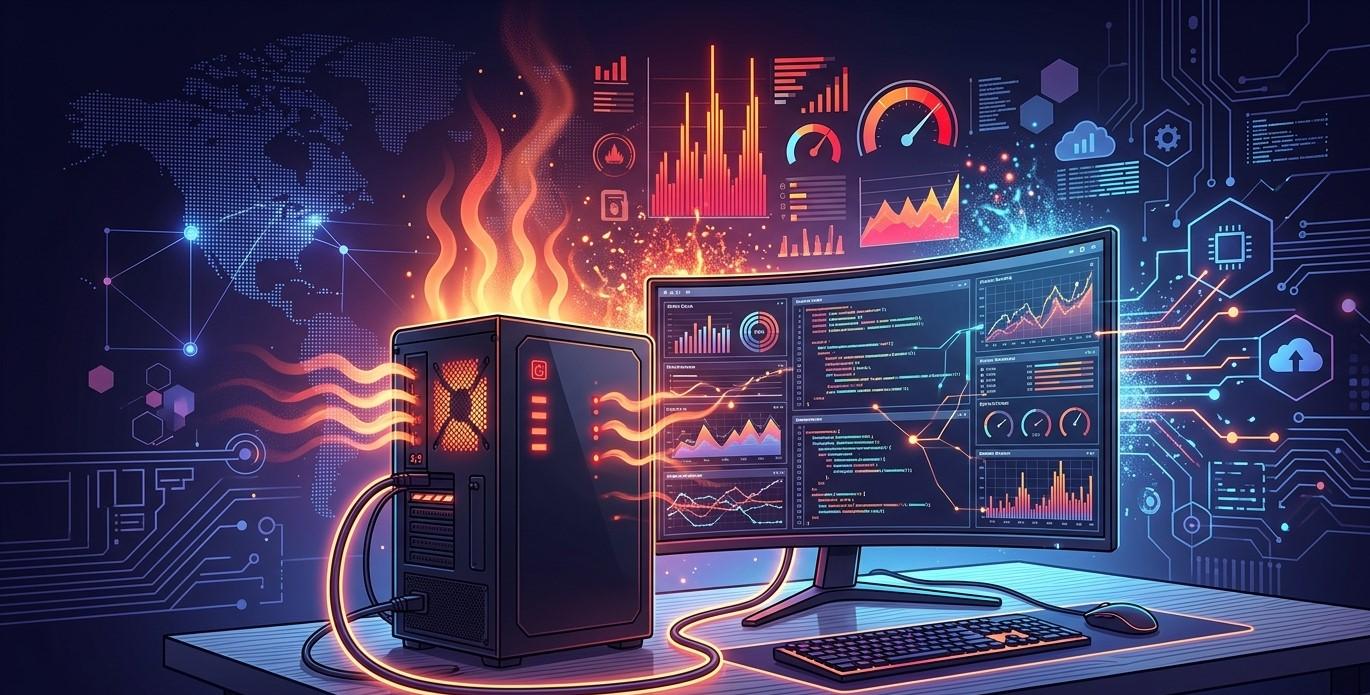
Connecting an external monitor can make a computer much more useful. A second screen provides additional workspace for multitasking, presentations, photo editing, spreadsheets, gaming, and everyday productivity. However, some users notice that their computer becomes slow, stutters, freezes, or responds less smoothly after connecting an external display.
This problem can have several causes. The computer may be struggling with increased graphics demands, an outdated driver, an unsuitable display setting, a faulty cable, overheating, or limited hardware resources. Understanding the source of the slowdown can help you troubleshoot the issue without making unnecessary changes. If the problem continues, professional computer repair Albany NY services can help identify whether the cause is related to hardware, software, or the external display itself.
An External Monitor Increases Graphics Workload
One of the most common reasons a computer slows down after connecting another monitor is the additional graphics workload.
Your graphics processor must generate and maintain images for each active display. If the external monitor has a higher resolution or refresh rate than the built-in screen, the graphics system may need to process substantially more information.
For example, running a high-resolution external monitor while keeping the laptop's internal display active can place additional demands on the GPU. This becomes more noticeable when running video editing software, games, 3D applications, or other graphics-intensive programs.
If the computer has an older or integrated graphics processor, the additional workload may result in reduced responsiveness.
High Resolution and Refresh Rates Can Affect Performance
Display resolution determines how many pixels the graphics processor must render. Higher resolutions require more processing power.
Refresh rate can also affect the workload. A monitor operating at 120 Hz, 144 Hz, or higher requires the system to update the image more frequently than a standard 60 Hz display.
If your computer becomes noticeably slower after connecting the monitor, check the display settings in Windows.
Right-click the desktop and open Display settings. Select the external monitor and review its resolution and refresh rate.
Try using the recommended resolution and a standard refresh rate temporarily. If performance improves, the original display configuration may have been placing too much demand on the graphics hardware.
Outdated Graphics Drivers May Cause Problems
Graphics drivers help Windows communicate with the GPU. If the driver is outdated, corrupted, or incompatible with your current Windows version, connecting an external monitor may expose performance problems.
You may notice symptoms such as:
- Lagging windows
- Screen flickering
- Stuttering video
- Slow animations
- Application crashes
- Delayed mouse movement
Check Windows Update for available driver updates. You can also use the official support website for your computer or graphics hardware manufacturer.
Avoid downloading graphics drivers from unfamiliar websites. Installing an incorrect driver can create additional display or performance problems.
The Computer May Be Running on Integrated Graphics
Many laptops contain both integrated and dedicated graphics processors. Depending on the system configuration, the external monitor may be connected through a port controlled by one particular graphics processor.
If the system is using integrated graphics for demanding workloads, performance may suffer.
Some laptops automatically switch between graphics processors depending on the application. Others provide manufacturer-specific controls for selecting which GPU an application should use.
If graphics performance changes dramatically after connecting a monitor, review the laptop manufacturer's graphics settings and documentation.
For users who are unsure how their system handles multiple GPUs, professional laptop repair Albany technicians can inspect the graphics configuration and identify potential bottlenecks.
Limited RAM Can Make Multitasking More Difficult
Adding an external monitor often encourages users to run more applications simultaneously.
You might keep a browser, spreadsheet, video call, email client, and document editor open across multiple screens. Although the monitor itself does not directly consume large amounts of RAM, the increased multitasking can expose memory limitations.
If your computer has limited RAM, Windows may begin relying more heavily on virtual memory stored on the storage drive.
Open Task Manager by pressing Ctrl + Shift + Esc and check memory usage while the external monitor is connected.
If memory usage remains very high during normal work, closing unnecessary applications or upgrading RAM on compatible systems may improve performance.
Your Computer May Be Overheating
External displays can increase graphics activity, which may produce additional heat.
If the computer's cooling system is already struggling because of dust buildup, blocked vents, or a failing fan, the additional graphics workload can push temperatures higher.
When temperatures rise too far, the processor or GPU may reduce its speed to protect the hardware. This can make the entire computer feel slower.
Watch for signs such as:
- Constantly running fans
- Excessive heat
- Sudden performance drops
- Unexpected shutdowns
- Slowdowns during graphics-intensive tasks
Keep ventilation openings clear and use laptops on hard, flat surfaces. If overheating continues, professional inspection may be necessary.
A Faulty Cable or Adapter Can Cause Display Problems
The connection between the computer and monitor can also contribute to unusual behavior.
HDMI, DisplayPort, USB-C, and other connections have different capabilities. A low-quality or damaged cable may not reliably support the selected resolution or refresh rate.
Adapters and docking stations can introduce additional compatibility considerations.
If you experience problems only when using a particular cable or adapter, test another compatible cable. Make sure the cable supports the resolution and refresh rate you are trying to use.
For laptops connected through docking stations, check whether the dock supports the required display configuration.
Background Applications May Be Consuming Resources
Some applications behave differently when an external display is connected. Video conferencing software, screen-recording tools, graphics utilities, and browser applications may increase resource usage.
Cloud applications and other background services may also be running simultaneously.
Use Task Manager to check CPU, memory, GPU, and disk usage. Look for programs that consume unusually high resources.
Closing unnecessary applications can help determine whether software activity is responsible for the slowdown.
Multiple Displays Can Expose Hardware Limitations
Older computers may simply have limited graphics capabilities.
A system designed for a single basic display may struggle with multiple high-resolution screens, especially when running demanding applications at the same time.
Before purchasing an external monitor, check the computer's specifications and confirm that its graphics hardware supports the desired number of displays, resolution, and refresh rate.
If you regularly use demanding applications, a computer with a stronger graphics processor may be more appropriate.
Check Windows Display Configuration
Windows includes several settings that can affect how displays operate.
Check whether the external monitor is set to Extend, Duplicate, or another display mode. Different configurations may produce different workloads.
You can also temporarily disconnect the internal laptop display or use only the external monitor to determine whether the additional screen is responsible for the slowdown.
If performance is normal with one display but becomes poor with two, the graphics configuration or hardware capability may need further investigation.
When Should You Seek Professional Help?
If your computer remains slow after adjusting display settings and updating drivers, professional diagnostics can help identify the underlying cause.
Consider seeking computer repair Albany NY assistance if you experience:
- Persistent system lag after connecting a monitor
- Frequent graphics driver crashes
- Screen flickering or artifacts
- Severe overheating
- Unexpected restarts
- Application crashes
- Poor performance even at recommended settings
- Problems with HDMI, DisplayPort, USB-C, or docking stations
A technician can test the graphics processor, memory, cooling system, display connections, drivers, and other hardware components.
Conclusion
A computer that becomes slow when connected to an external monitor may be experiencing increased graphics workload, high resolution or refresh rates, outdated drivers, insufficient RAM, overheating, connection problems, or hardware limitations. Start by checking display settings, reducing the refresh rate if necessary, updating graphics drivers, monitoring resource usage, and testing another cable or adapter.
If the problem persists, avoid assuming that the monitor itself is defective. The computer's graphics hardware, cooling system, drivers, or connection method may be responsible.
Professional computer repair Albany services can diagnose persistent display-related performance problems and recommend practical solutions. For laptops, experienced laptop repair Albany technicians can also evaluate graphics performance, cooling, ports, drivers, and hardware compatibility. With proper troubleshooting, you can enjoy the additional workspace of an external monitor without sacrificing system responsiveness.

 English
 Arabic
 French
 Spanish
 Portuguese
 Deutsch
 Dutch
Dutch
 Italiano
 Russian
 Romaian
 Portuguese (Brazil)
 Greek
Greek