


Why Is My iPhone Camera Showing a Black Screen?
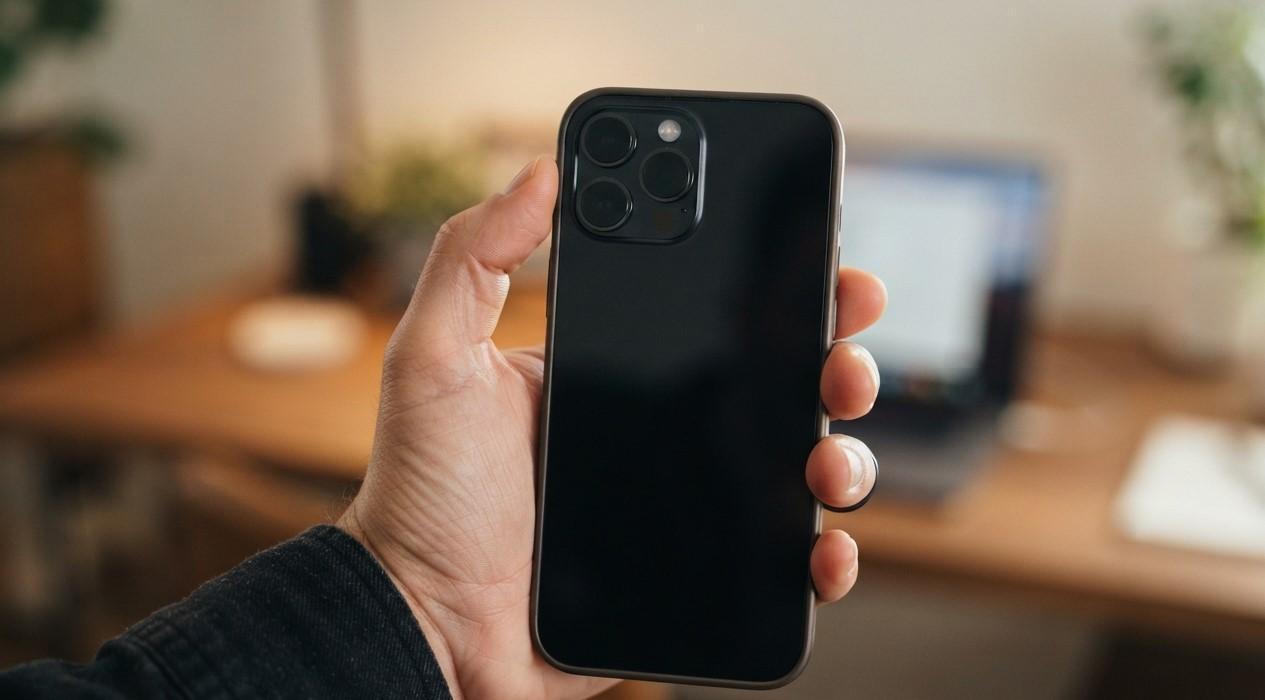
Opening the Camera app and seeing nothing but a black screen can be frustrating, especially when you need to take an important photo or video. Sometimes the problem is caused by a temporary software glitch, an accessory interfering with the camera, or an app issue. In other cases, the camera itself may have been damaged and require professional repair.
At Avenue D Cellular, we understand how inconvenient camera problems can be. If you are searching for cell phone repair brooklyn ny because your iPhone camera suddenly stopped working or looking for iphone repair brooklyn services after a drop or other damage, understanding the possible causes can help you decide what to try first.
Apple recommends several basic troubleshooting steps for an iPhone camera that displays a black screen, including removing accessories, restarting the device, updating iOS, and testing both the front and rear cameras.
Table of Contents
- Why Is My iPhone Camera Showing a Black Screen?
- Common Causes of a Black iPhone Camera Screen
- Remove Your Case or Camera Accessories
- Close and Reopen the Camera App
- Restart Your iPhone
- Check Both Front and Rear Cameras
- Clean the Camera Lens
- Update Your iPhone Software
- Check Whether Other Apps Can Access the Camera
- Could a Hardware Problem Cause a Black Camera Screen?
- Signs Your iPhone Camera May Need Repair
- How to Prevent Future Camera Problems
- Frequently Asked Questions
- CTA
Why Is My iPhone Camera Showing a Black Screen?
When you open the Camera app, the preview should normally show whatever is in front of the selected camera. If the preview remains completely black, the camera may not be communicating correctly with iOS or another problem may be preventing the camera from operating normally.
A black camera screen does not automatically mean that the camera needs to be replaced. A software glitch, accessory, case, magnetic mount, or temporary system problem can sometimes cause similar symptoms.
Apple recommends testing the camera after removing potentially interfering accessories, restarting the iPhone, updating iOS, and checking whether one or both cameras are affected.
Common Causes of a Black iPhone Camera Screen
There are several possible explanations for a black camera preview.
Temporary Software Glitch
The Camera app or iOS may experience a temporary problem that prevents the camera preview from loading correctly.
Restarting the iPhone can sometimes resolve these temporary issues.
Case or Accessory Interference
Some cases, lens accessories, magnetic mounts, or other attachments can interfere with the camera or flash. Apple specifically recommends removing cases, films, and accessories that might block the camera or place a magnet near it while troubleshooting.
Camera App Problem
The Camera app itself may become temporarily unresponsive. Closing and reopening the application can help determine whether the issue is limited to the app.
Outdated iOS
Software updates can contain bug fixes and improvements. If your iPhone is running an older version of iOS, updating it may resolve certain camera-related problems.
Physical Camera Damage
A drop, impact, liquid exposure, or previous repair can potentially damage the camera module or its internal connections.
If the problem started immediately after physical damage, hardware inspection may be more appropriate than repeatedly trying software fixes.
Remove Your Case or Camera Accessories
Before assuming the camera is defective, remove anything that could interfere with it.
Take off:
- Your iPhone case
- Camera lens attachments
- Magnetic mounts
- Camera filters
- Lens covers
- Other accessories positioned around the camera
Then open the Camera app and test it again.
Apple recommends removing accessories that could block the camera or place a magnet near the camera during troubleshooting.
If the camera works normally after removing an accessory, you may have found the source of the problem.
Close and Reopen the Camera App
If the Camera app is displaying a black preview, close it and open it again.
After reopening the app, test:
- The rear camera
- The front camera
- Photo mode
- Video mode
- Flash
- Other available camera modes
If only one camera is affected, that information can be useful when determining whether the issue is software-related or specific to a camera module.
Restart Your iPhone
A simple restart is one of the easiest troubleshooting steps to try.
Temporary software problems can sometimes affect individual functions, including the camera. Apple recommends restarting the iPhone when troubleshooting camera problems.
After restarting, open the Camera app and test the camera again.
If your iPhone is frozen or unresponsive, you may need to perform a force restart instead of a standard restart.
Check Both Front and Rear Cameras
Your iPhone may have more than one camera, so test each one separately.
Open the Camera app and tap the camera-switch button to move between the front and rear cameras.
If Both Cameras Are Black
If both cameras display a black screen, the issue may be related to iOS, the Camera app, or another system-level problem.
Try restarting and updating the iPhone before assuming that both camera modules have failed.
If Only One Camera Is Black
If the front camera works but the rear camera remains black—or vice versa—the problem may be more specific to the affected camera or its connection.
This can be especially important if the issue began after an impact or previous repair.
Clean the Camera Lens
A dirty lens generally causes blurry or poor-quality images rather than a completely black preview, but cleaning the lens is still a useful basic troubleshooting step.
Use a soft, clean microfiber cloth to gently clean the front and rear camera lenses.
Avoid using abrasive materials or excessive pressure.
Apple also recommends cleaning the camera lenses when troubleshooting camera image-quality problems.
Update Your iPhone Software
If the camera continues to display a black screen, check whether an iOS update is available.
Go to:
Settings → General → Software Update
If an update is available, make sure your iPhone has sufficient battery power and follow the on-screen instructions.
Apple includes updating iOS among its recommended troubleshooting steps when the camera or flash isn't working correctly.
After updating, test the Camera app again.
Check Whether Other Apps Can Access the Camera
Try using another app that requires camera access, such as a video-calling or social media application.
If the camera works normally in another application but remains black in the standard Camera app, the problem may be related to the Camera app or iOS rather than the physical camera itself.
If the camera remains black across multiple applications, the possibility of a broader software or hardware problem becomes more important.
You should also check whether the affected application has permission to access the camera.
Could a Hardware Problem Cause a Black Camera Screen?
Yes.
If basic troubleshooting doesn't solve the problem, the camera hardware may require professional inspection.
Potential hardware-related causes can include:
- Camera module damage
- Internal connector problems
- Damage caused by a drop
- Liquid exposure
- Damage from previous repairs
- Internal component failure
- Problems involving the camera assembly
Apple's current iPhone repair documentation includes camera troubleshooting and diagnostics for camera-related issues, reflecting that camera problems can require hardware-level investigation.
For newer compatible iPhone models, Apple's diagnostics tools can also test camera image quality and other hardware components.
Signs Your iPhone Camera May Need Repair
Professional inspection may be appropriate if you notice one or more of these signs:
- The camera remains completely black after restarting.
- Only one camera works.
- The camera stopped working after a drop.
- The camera stopped working after liquid exposure.
- The Camera app repeatedly freezes.
- The camera works intermittently.
- The flashlight also behaves abnormally.
- The camera makes unusual sounds.
- Photos remain black after being captured.
- The problem started after a previous repair.
If the issue persists after basic troubleshooting, Apple recommends seeking service for a camera that still isn't working properly.
What About a Camera Replaced During a Previous Repair?
If your iPhone has previously had its camera replaced, the repair history may provide useful information.
On supported iPhone models, you can check Settings → General → About → Parts and Service History to see information about certain replaced components. Apple explains that compatible iPhones can show camera service information in this section.
Camera compatibility can also matter. Apple notes that nongenuine or improperly installed camera parts can sometimes cause compatibility or performance problems, including issues involving camera functionality.
For this reason, camera repairs should be performed carefully by a qualified technician using appropriate parts and procedures.
How to Prevent Future Camera Problems
While you cannot prevent every camera failure, several habits can help protect your iPhone.
Use a Protective Case
A good case can help reduce the impact of everyday drops and bumps.
Protect the Camera Lenses
Avoid placing your iPhone face-down on rough or dirty surfaces that could scratch the camera lenses.
Keep the Camera Area Clean
Regularly wipe the lenses with a soft microfiber cloth.
Be Careful Around Liquids
Although some iPhone models have water-resistance ratings, liquid exposure can still cause problems under certain conditions. Avoid intentionally exposing your iPhone to water.
Choose Professional Repairs
If the camera is damaged, professional repair is preferable to attempting a complicated camera replacement without the necessary tools or experience.
Apple states that trained technicians and appropriate genuine camera parts are important when replacing an iPhone camera.
Frequently Asked Questions
Why is my iPhone camera completely black?
A black camera preview can result from a temporary software issue, accessory interference, an outdated system, or camera hardware damage. Start by removing accessories, restarting the iPhone, updating iOS, and testing both cameras.
Why does my front camera work but my rear camera doesn't?
If one camera works while the other remains black, the issue may be isolated to the affected camera or its internal connection. If restarting and updating iOS don't help, professional inspection may be necessary.
Can restarting an iPhone fix a black camera?
Yes, a temporary software issue can sometimes be resolved by restarting the device. Apple recommends restarting the iPhone as part of its camera troubleshooting process.
Can a phone case cause the camera screen to go black?
Certain cases, lens attachments, magnetic accessories, or other accessories can interfere with the camera. Remove them temporarily and test the camera again.
Does a black camera mean I need a new camera?
Not necessarily. The cause could be software, an accessory, or another issue. Proper diagnosis should come before replacing the camera module.
Can dropping an iPhone cause a black camera?
Yes. A significant impact can potentially damage the camera module or internal connections. If the black screen appeared immediately after a drop, professional inspection is recommended.
Why is my iPhone flashlight not working with the camera problem?
The camera and flash functions can sometimes be related. Apple recommends testing the LED flash while troubleshooting camera problems.
Should I update iOS if my camera is black?
Checking for an available iOS update is a reasonable troubleshooting step. Apple specifically recommends updating iOS when the camera isn't working correctly.
Get Professional Help for Your iPhone Camera
A black iPhone camera screen doesn't always mean that the camera needs to be replaced. Start with simple troubleshooting: remove cases and accessories, clean the lens, close and reopen the Camera app, restart the iPhone, test both cameras, and update iOS.
If the problem continues, especially after a drop, liquid exposure, or previous repair, professional diagnosis can help determine whether the issue is software-related or caused by camera hardware.
At Avenue D Cellular, customers searching for cell phone repair brooklyn ny can get assistance with iPhone camera problems and other device issues. If you're looking for iphone repair brooklyn, proper diagnosis can help identify the cause before unnecessary parts are replaced.
Don't let a black camera screen prevent you from using your iPhone normally. Get the problem checked and find the right repair solution for your device.
Need help with an iPhone camera that isn't working? Contact Avenue D Cellular today for professional iPhone repair assistance.

 English
 Arabic
 French
 Spanish
 Portuguese
 Deutsch
 Dutch
Dutch
 Italiano
 Russian
 Romaian
 Portuguese (Brazil)
 Greek
Greek