


How to Fix QuickBooks Error H202 and H505 in Multi-User Mode
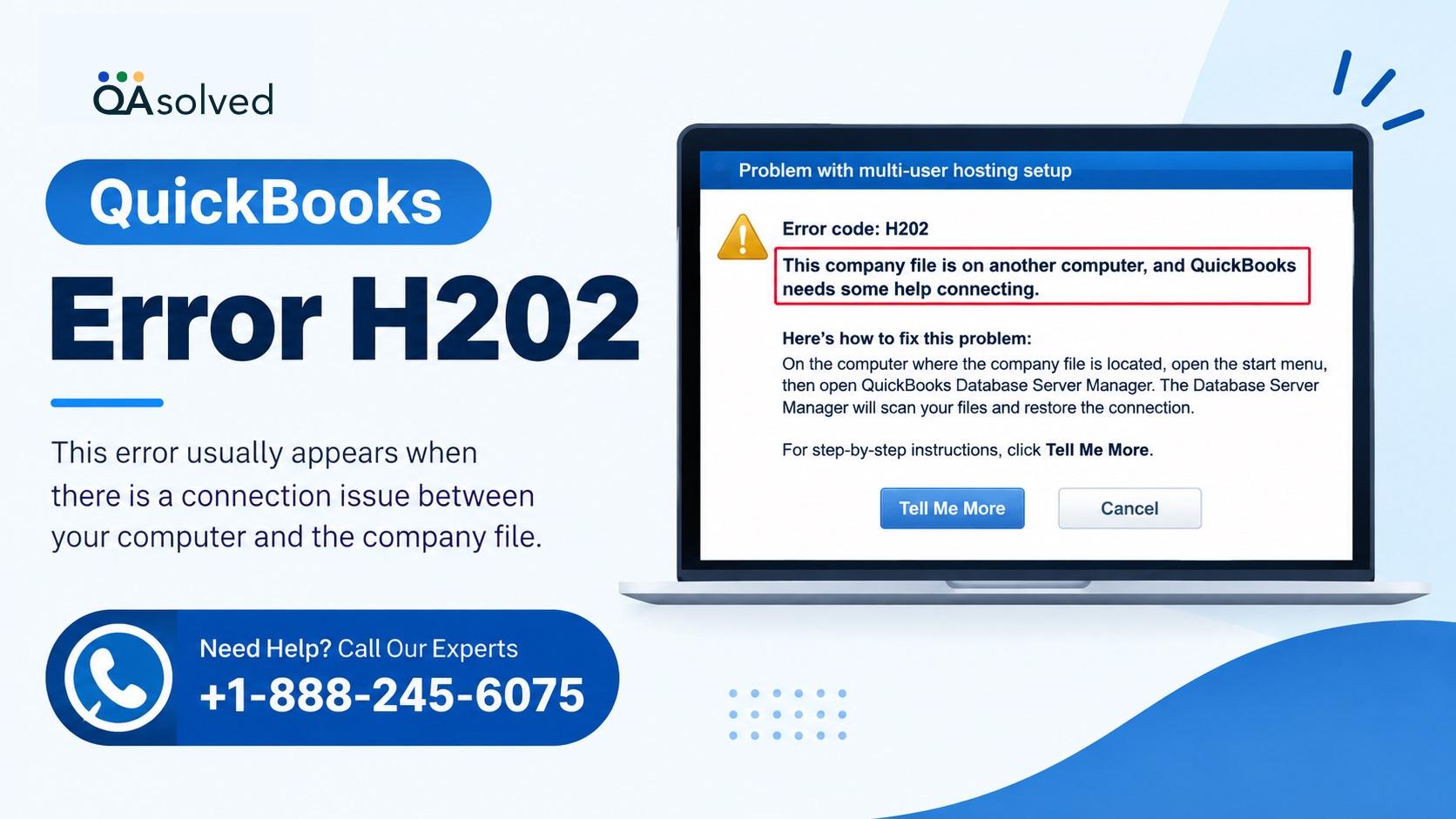
QuickBooks Desktop allows businesses to share company files across multiple computers through multi-user mode. This feature helps employees access financial records and work on accounting tasks over a shared network. However, network connection problems can prevent workstations from communicating with the computer that stores the company file.
QuickBooks Error H202 and H505 are common multi-user hosting errors. Related error codes include H101 and H303. These errors may appear when a workstation cannot connect to the server or when a computer has an incorrect hosting configuration.
This guide explains how to troubleshoot QuickBooks Error H202 and H505 using QuickBooks Tool Hub, Database Server Manager, Windows services, firewall settings, and network connectivity checks.
What Causes QuickBooks Error H202 and H505?
QuickBooks displays these errors when something interferes with the connection between a workstation and the computer hosting the company file.
Common causes include:
· QuickBooks Database Server Manager is not running correctly.
· Required QuickBooks services have stopped.
· Windows firewall settings block network communication.
· The server computer has incorrect hosting settings.
· Workstations have multi-user hosting enabled when they should not.
· Network connectivity problems prevent workstations from reaching the server.
· QuickBooks services do not have the required Windows permissions.
Identifying the cause helps you choose the right troubleshooting method and restore access to your company file.
Solution 1: Fix QuickBooks Error H202 Using QuickBooks Tool Hub
QuickBooks Tool Hub provides tools for troubleshooting common company file and network problems. Run it on the server computer that stores your company file.
Step 1: Download and Install QuickBooks Tool Hub
1. Close QuickBooks Desktop on your computer.
2. Download the latest available version of QuickBooks Tool Hub from the official Intuit website.
3. Save the downloaded file in an accessible location, such as your Downloads folder.
4. Open the downloaded QuickBooksToolHub.exe file.
5. Follow the on-screen instructions and accept the license terms.
6. Complete the installation and launch QuickBooks Tool Hub from your desktop.
If you have already installed Tool Hub, open its Home tab to check the installed version.
Step 2: Run QuickBooks Database Server Manager
Database Server Manager helps QuickBooks computers access company files over a network.
1. Open QuickBooks Tool Hub on the server computer.
2. Select Network Issues.
3. Choose QuickBooks Database Server Manager.
4. If the tool cannot find your company file folder, select Browse and locate the folder.
5. Select Start Scan.
6. Allow the scan to finish. Database Server Manager will attempt to repair the necessary firewall permissions.
7. Select Close when the scan completes.
Now open QuickBooks Desktop on each workstation experiencing Error H202. Select File > Switch to Multi-user Mode to check whether the connection works.
Step 3: Run QuickBooks File Doctor
If Error H202 continues, use QuickBooks File Doctor to check the company file and network connection.
1. Open QuickBooks Tool Hub.
2. Select Company File Issues.
3. Choose Run QuickBooks File Doctor.
4. Select your company file from the list. If it does not appear, browse to its location.
5. Select Check your Network and then Continue.
6. Enter your QuickBooks administrator password when prompted.
7. Select Next and allow the tool to complete its checks.
Try opening the company file in multi-user mode again. If the error remains, continue with the manual troubleshooting methods below.
Solution 2: Check QuickBooks Services on the Server
QuickBooks relies on Windows services to manage company file access. Make sure the required services are running on the server computer.
Check QuickBooksDBXX
1. Open the Windows Start menu on the server.
2. Search for Run and open it.
3. Enter services.msc and press Enter.
4. Find and double-click the QuickBooksDBXX service.
5. Set the Startup type to Automatic.
6. Check the Service status. If the service is stopped, select Start.
7. Open the Recovery tab.
8. Set First failure, Second failure, and Subsequent failures to Restart the Service.
9. Select Apply and then OK.
The XX in the service name represents the QuickBooks version-specific database service. For example, QuickBooks Desktop 2023 uses QuickBooksDB33.
Repeat these steps for QBCFMonitorService.
If you installed the full QuickBooks program on the server, also check its hosting configuration. Open QuickBooks, select File, and then Utilities. If Host Multi-User Access appears, select it. If Stop Hosting Multi-User Access appears, leave that option alone.
After checking both services, open QuickBooks on the affected workstations and test multi-user mode.
Solution 3: Give QuickBooks Services the Required Permissions
QuickBooks database services need appropriate Windows permissions to operate correctly.
If Error H202 persists, verify that QuickBooksDBXX and QBCFMonitorService have the necessary administrative permissions on the server computer.
Review the Windows access permissions for sharing QuickBooks company files and apply the required settings. Once you finish, reopen QuickBooks on the server and workstations and check whether users can access the shared company file.
Solution 4: Configure Windows Firewall Settings
Windows firewall settings can prevent QuickBooks workstations from communicating with the server.
To troubleshoot this problem:
1. Open the Windows firewall settings on the server computer.
2. Review the firewall rules for QuickBooks Desktop.
3. Configure the required firewall exceptions using Intuit's official instructions for QuickBooks Desktop.
4. Save the changes.
5. Open QuickBooks on each affected workstation.
6. Select File > Switch to Multi-user Mode.
If the company file opens successfully, the network connection is working again. If Error H202 continues, check the network connection directly.
Solution 5: Test the Network Connection Between Workstations and the Server
A network test can help determine whether the workstation can communicate with the server computer.
Step 1: Enable Network Discovery
On the server and each workstation experiencing the error:
1. Open the Windows Start menu.
2. Search for Network and open Network and Sharing Center.
3. Select Change advanced sharing settings.
4. Turn on Network Discovery.
5. Turn on File and Printer Sharing.
Step 2: Find the Server Name
1. Open Run on the server computer.
2. Enter CMD and press Enter.
3. Type ipconfig /all in the Command Prompt window.
4. Find the Host Name under Windows IP Configuration.
5. Write down the server's host name.
Step 3: Ping the Server
1. Move to a workstation experiencing Error H202.
2. Open Run and enter CMD.
3. In Command Prompt, type ping your-server-name, replacing your-server-name with the actual host name.
4. Press Enter to run the test.
5. Repeat the test on other affected workstations.
If the server replies to every packet without packet loss, the connection is responding normally, and you can continue investigating other causes. If packets are lost or replies are very slow, contact an IT professional to investigate the network problem.
Solution 6: Fix QuickBooks Error H505, H101, and H303
QuickBooks Errors H505, H101, and H303 can occur when a workstation is configured to host multi-user access incorrectly.
The computer storing the company file should be the designated host. Other computers that access the file should not host multi-user mode.
Follow these steps on each affected workstation:
1. Open QuickBooks Desktop without opening a company file.
2. Select File > Utilities.
3. If Host Multi-User Access appears, do not select it.
4. If Stop Hosting Multi-User Access appears, select it.
5. Repeat the process on the other workstations showing these errors.
Next, open QuickBooks on the server computer.
1. Select File and then Utilities.
2. If Host Multi-User Access appears, select it.
3. If Stop Hosting Multi-User Access appears, do not select it.
This configuration helps ensure that the server hosts the company file while the workstations connect to it.
Important Notes About QuickBooks Network Hosting
QuickBooks Database Server Manager does not support Network Attached Storage (NAS) devices. If you store company files on a NAS device, review your hosting arrangement and choose a supported setup.
Businesses using Windows Server 2012 Essentials R2 should follow the applicable network-hosting instructions for that environment. Make sure the Database Server Manager installation matches the QuickBooks versions used by your company.
QuickBooks provides two installation options for the server:
· Full Program: Install QuickBooks Desktop and Database Server Manager on the server.
· Server Only: Install Database Server Manager without the full QuickBooks Desktop program.
Choose the appropriate configuration for your network and hosting requirements.
Final Thoughts
QuickBooks Errors H202 and H505 can interrupt accounting work by preventing access to a shared company file. Start with QuickBooks Tool Hub, run Database Server Manager and File Doctor, and then check Windows services, permissions, firewall settings, and network connectivity.
For H505, H101, and H303, pay particular attention to the hosting configuration on the server and workstations. Follow each troubleshooting step carefully and test multi-user mode after making changes. If the network test shows packet loss or slow responses, seek help from an IT professional to investigate the connection.
Frequently Asked Questions
What is QuickBooks Error H202?
QuickBooks Error H202 occurs when a workstation cannot establish the required connection to the computer hosting the company file in multi-user mode.
How do I fix QuickBooks Error H505?
Check hosting settings first. Disable multi-user hosting on workstations and enable it on the designated server. If the error continues, check Database Server Manager, Windows services, firewall permissions, and network connectivity.
Can QuickBooks Tool Hub fix Error H202?
Yes. QuickBooks Tool Hub includes Database Server Manager and File Doctor, which can help troubleshoot network and company file connection problems.
Why does QuickBooks work on the server but not on workstations?
The workstations may be unable to communicate with the server because of stopped services, firewall restrictions, incorrect hosting settings, or network problems.
Should every computer enable Host Multi-User Access?
No. In the configuration described in this guide, the server computer should host the company file. Workstations should not enable hosting.

 English
 Arabic
 French
 Portuguese
 Deutsch
 Turkish
 Dutch
Dutch
 Italiano
 Russian
 Romaian
 Portuguese (Brazil)
 Greek
Greek