


How to Fix QuickBooks Subscription Has Lapsed Error in Desktop
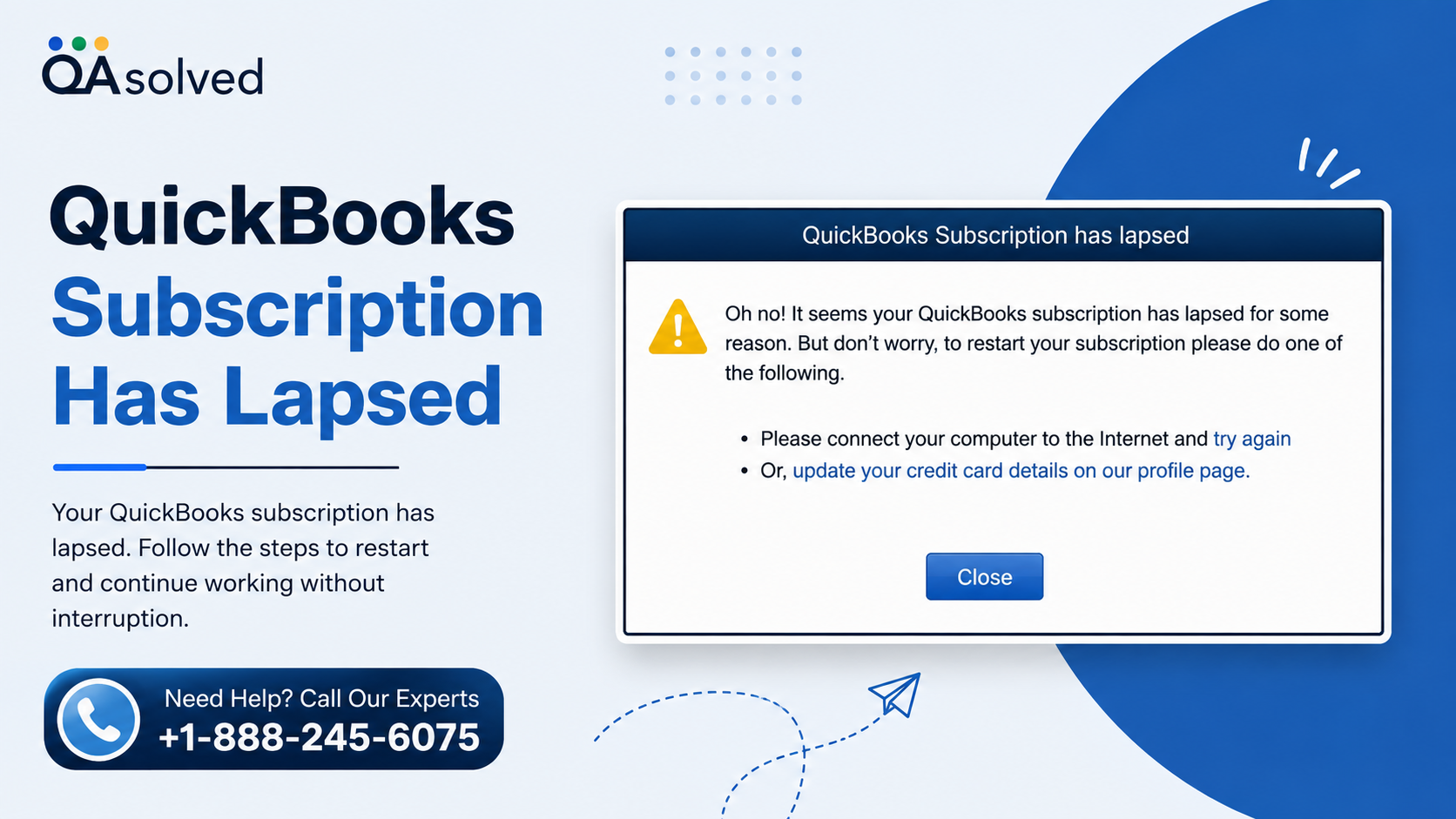
QuickBooks Desktop helps businesses manage their accounting, payroll, invoices, and financial records. However, you may sometimes see the “Your QuickBooks subscription has lapsed” or " Subscription expired message while opening the software. This error can prevent you from accessing certain features and interrupt your regular accounting work.
The good news is that a lapsed subscription message does not automatically mean you have lost your company data. In most cases, you can resolve the issue by updating your billing information, installing the latest software updates, repairing installation files, or refreshing your license information.
In this guide, you will learn how to fix the QuickBooks subscription has lapsed error using five practical troubleshooting methods.
What Causes the QuickBooks Desktop Subscription Error?
Before applying a solution, it helps to understand why QuickBooks displays this message. Several issues can prevent the software from verifying your subscription.
Common causes include:
· Expired payment information: Your credit card or other payment method may have expired or been declined.
· Outdated QuickBooks Desktop: Older software versions may experience problems connecting to Intuit's online services.
· Damaged installation files: Missing or damaged Windows components can interfere with QuickBooks.
· Corrupted license information: A damaged entitlement file may prevent the software from validating your subscription.
· Internet connection problems: Incorrect connection settings, firewall restrictions, or network issues may block communication with QuickBooks services.
Follow the solutions below in order, starting with your billing information.
Solution 1: Update Your QuickBooks Subscription Billing Information
Incorrect or outdated payment details are a common reason for subscription-related errors. Check your billing information through the Customer Account Management Portal (CAMPs) and update it if necessary.
Steps to Update Your Payment Method
1. Sign in to the QuickBooks Customer Account Management Portal (CAMPs) using your Intuit account.
2. Open the Products and Services section.
3. Locate your QuickBooks Desktop subscription.
4. Select Details beside your QuickBooks product.
5. Find the Payment Method section and select Edit.
6. Enter your updated payment information.
7. Select Save and Close to save your changes.
Note: Only the primary contact or another authorized account contact with the required permissions can update payment information.
After updating your billing details, refresh the license information in QuickBooks Desktop.
1. Open QuickBooks Desktop.
2. Select the Help menu.
3. Hover over Manage My License.
4. Select Sync License Data Online.
5. Wait for the synchronization to finish, then restart QuickBooks.
Check whether the subscription message disappears. If it remains, continue to the next solution.
Solution 2: Download and Install the Latest QuickBooks Desktop Updates
Running an outdated version of QuickBooks Desktop can cause problems when the software connects to Intuit's online services. Installing the latest available updates may resolve compatibility issues and subscription verification errors.
How to Update QuickBooks Desktop
1. Open QuickBooks Desktop.
2. Select the Help menu.
3. Choose Update QuickBooks Desktop.
4. Open the Update Now tab.
5. Select the updates you want to install. You can select Reset Update if you need to clear previously downloaded update files before downloading them again.
6. Click Get Updates.
7. Wait for the download to finish.
8. Close and reopen QuickBooks.
9. If prompted, select the option to install the downloaded updates.
Once the installation finishes, restart your computer if necessary and open your company file.
Check whether QuickBooks can now verify your subscription. If you still receive the lapsed subscription error, proceed to the next method.
Solution 3: Run the QuickBooks Install Diagnostic Tool
Damaged Windows components or QuickBooks installation files can interfere with the software's ability to connect to online services. The QuickBooks Tool Hub includes troubleshooting utilities that can help repair certain installation-related problems.
Step 1: Download and Install QuickBooks Tool Hub
1. Close QuickBooks Desktop and any open company files.
2. Visit the official Intuit website and download the latest compatible version of QuickBooks Tool Hub.
3. Save the downloaded installation file in an easy-to-find location, such as your Downloads folder.
4. Open the downloaded QuickBooksToolHub.exe file.
5. Follow the on-screen instructions to complete the installation.
6. Accept the license agreement when prompted.
7. After installation, double-click the QuickBooks Tool Hub icon on your Windows desktop.
If you cannot find the desktop icon, search for QuickBooks Tool Hub in the Windows Start menu.
Step 2: Run the QuickBooks Install Diagnostic Tool
1. Open QuickBooks Tool Hub.
2. Select Installation Issues from the available categories.
3. Choose QuickBooks Install Diagnostic Tool, if available in your version.
4. Allow the tool to scan and repair supported installation components.
5. Wait for the process to finish. It may take several minutes.
6. Restart your computer if the tool recommends it.
7. Open QuickBooks Desktop and check whether the subscription error persists.
Use the current Tool Hub version supported by your QuickBooks installation and Windows system. If the diagnostic tool does not resolve the problem, move to the next solution.
Solution 4: Rebuild the QuickBooks Product and License File
QuickBooks Desktop stores product registration and license information in a local entitlement file. If this file becomes damaged, the program may fail to validate your subscription correctly.
You can troubleshoot this issue by removing the entitlement file so QuickBooks can recreate it. Before proceeding, make sure you have your QuickBooks product number and license number available.
Steps to Refresh the License Information
1. Close QuickBooks Desktop completely.
2. Open the Windows Start menu.
3. Type Run in the search box and open the Run application.
4. Enter the following path in the Run dialog box:
C:\ProgramData\Intuit\Entitlement
Client\v8
5. Press Enter to open the folder.
6. If the folder does not exist, try the following alternative path:
C:\ProgramData\Intuit\Entitlement
Client\v6
7. Find the file named EntitlementDataStore.ecml.
8. Right-click the file and select Delete. Confirm the action if Windows asks for permission.
9. Close the folder.
10. Open QuickBooks Desktop again.
11. Follow the registration prompts and enter your product and license information when requested.
QuickBooks should create a new entitlement file as needed.
Important: Delete only the specified entitlement file, not other files or folders. If you are unsure which file to remove, contact QuickBooks support before making changes.
After completing these steps, check whether QuickBooks accepts your subscription and opens your company file normally.
Solution 5: Check Your Internet Connection Settings in QuickBooks
QuickBooks Desktop needs a working internet connection to verify subscription details and communicate with Intuit's online services. Incorrect connection settings or security restrictions can prevent this communication.
How to Check Internet Connection Settings
1. Open QuickBooks Desktop.
2. Select the Help menu.
3. Choose Internet Connection Setup, if this option is available in your version.
4. Select the option to use your computer's internet connection settings.
5. Continue through the setup screens and save any changes.
6. Close QuickBooks and reopen it.
You should also check the following:
· Confirm that your internet connection is stable.
· Make sure your computer's date and time are correct.
· Check whether your firewall or security software is blocking QuickBooks.
· If you use a proxy or business network, ask your network administrator to verify that the required QuickBooks connections are permitted.
· Avoid disabling your firewall or antivirus protection permanently.
If the subscription error continues, try opening QuickBooks on another permitted network to determine whether the problem is related to your current connection.
Additional Tips to Prevent QuickBooks Subscription Errors
After resolving the problem, follow these practices to reduce the chances of seeing the same message again.
· Keep payment details current: Update expired cards and review subscription billing notifications.
· Install software updates regularly: Use the latest updates supported by your QuickBooks Desktop version.
· Maintain a stable internet connection: Subscription verification requires access to Intuit's online services.
· Keep your license details secure: Store your product and license information in a safe location.
· Back up your company file: Create regular backups before performing troubleshooting or making significant changes to your accounting software.
If none of the solutions works, verify your subscription status through your Intuit account and contact official QuickBooks support. Provide the exact error message, your QuickBooks Desktop version, and the troubleshooting steps you have already completed.
Final Thoughts
The QuickBooks subscription has lapsed error can interrupt your accounting work, but you can often resolve it with a few troubleshooting steps. Start by reviewing your billing information and installing the latest updates. If those steps do not work, use QuickBooks Tool Hub, refresh the product entitlement file, and check your internet connection settings.
Always protect your company file with a recent backup before making significant changes. If the error continues after trying these solutions, contact official QuickBooks support to verify your subscription and resolve any remaining license or account issues.
Frequently Asked Questions
1. Why does QuickBooks say my subscription has lapsed?
QuickBooks may display this message when your subscription payment fails, your billing information is outdated, or the software cannot verify your license. Internet connection problems and damaged entitlement files can also contribute to the issue.
2. Will the QuickBooks subscription lapsed error delete my company data?
The message itself does not mean your company data has been deleted. However, access to certain software features may be restricted. Keep a recent backup of your company file and avoid unnecessary changes while troubleshooting.
3. How do I reactivate my QuickBooks Desktop subscription?
Sign in to your Intuit account, review your subscription status, and update your payment method if needed. Then open QuickBooks Desktop and select Help > Manage My License > Sync License Data Online, if available.
4. Can QuickBooks Tool Hub fix a subscription error?
QuickBooks Tool Hub can help repair certain installation-related problems that interfere with QuickBooks. However, it cannot reactivate an expired subscription or correct unpaid billing by itself.
5. What should I do if QuickBooks still shows a lapsed subscription message?
Verify your billing status, install available updates, run the appropriate diagnostic tool, refresh the entitlement file if necessary, and check your internet connection. If the issue remains, contact official QuickBooks support for account-specific assistance.

 English
 Arabic
 French
 Spanish
 Portuguese
 Deutsch
 Turkish
 Dutch
Dutch
 Italiano
 Russian
 Romaian
 Portuguese (Brazil)