
6 Best Screen Recording Software Without Watermark (2026)
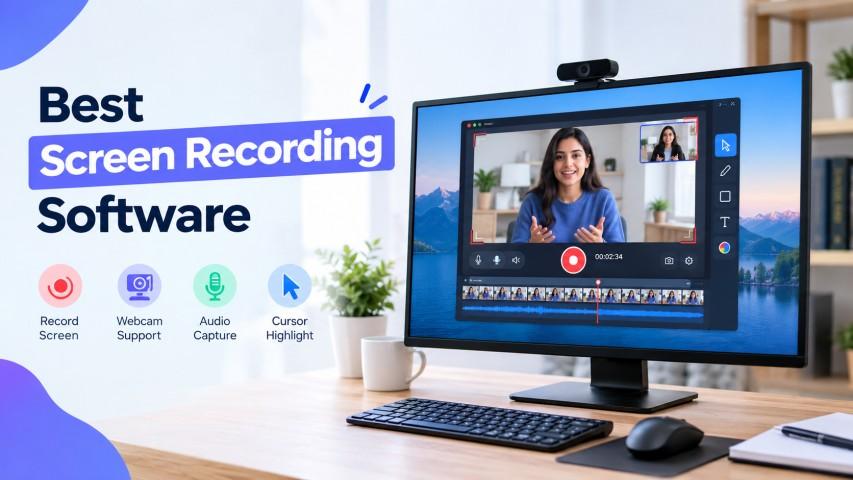
Recording your computer screen is useful for creating tutorials, online courses, software demonstrations, gaming videos, and work presentations. However, finding the right tool can be challenging when you need clear video quality without a distracting watermark. The best screen recording software should be easy to use, offer reliable recording features, and allow you to capture your screen without unnecessary limitations.
Whether you are a student, content creator, gamer, or professional, choosing the right screen recorder can save time and improve the quality of your videos.
What Is Screen Recording Software?
Screen recording software captures the activity displayed on your computer screen and saves it as a video file. Depending on the application, you can record the entire screen, a particular window, or a selected area. Some tools also support microphone audio, system sound, webcam footage, and basic editing.
Modern screen recording programs are available for different experience levels. Beginners may prefer a simple interface with one-click recording, while advanced users might need customizable settings, multiple audio sources, and higher-quality video output.
1. OBS Studio
OBS Studio is a popular free option for people who need flexible recording and streaming features. It allows users to capture their desktop, applications, webcam, and audio sources in one project.
The OBS screen recorder offers customizable recording settings, multiple scenes, and support for different video formats. It is especially useful for gaming videos, tutorials, live streams, and professional demonstrations.
Best for: Content creators, gamers, and users who want advanced controls without paying for a subscription.
2. ShareX
ShareX is a lightweight Windows application designed for screenshots and screen recording. It includes several capture options and useful workflow features, making it suitable for technical documentation and quick demonstrations.
Users can capture specific regions of their desktop and use different tools to manage their screenshots and recordings. Although its interface may take some time to understand, it is a useful choice for people who want a free Windows screen recording tool.
Best for: Developers, office users, and people who frequently capture screen activity.
3. ScreenRec
ScreenRec focuses on straightforward screen capture and sharing. Its simple workflow can help users record tutorials, explain software issues, or show colleagues how to complete a task.
This tool is worth considering if you want a screen recorder that does not require a complicated setup. Check the current free-plan limits and export options before choosing it for regular professional use.
Best for: Quick tutorials, team communication, and software demonstrations.
4. Xbox Game Bar
Xbox Game Bar is a built-in Windows feature that lets users record supported applications without installing a separate recording application. It can be convenient when you need to capture gameplay or activity inside a program.
The tool is easy to access through Windows shortcuts, but it does not offer the same flexibility as dedicated recording applications. Desktop and File Explorer recording may also be limited, depending on the Windows version and capture scenario.
Best for: Casual gameplay and quick recordings of supported applications.
5. CamStudio
CamStudio is a desktop recording application that has traditionally been used for basic tutorials and demonstrations. It provides straightforward recording functionality for users who prefer a simple approach.
Before installing it, check the availability of a trustworthy download, compatibility with your operating system, and the security of the installer. Some users may prefer more actively maintained alternatives for modern workflows.
Best for: Basic recording tasks when a suitable, trusted version is available.
6. ScreenPal
ScreenPal provides screen recording features designed for tutorials, presentations, educational videos, and demonstrations. Depending on the plan, users may have access to webcam recording, editing tools, and video-sharing options.
If you need more than basic capture, compare its available features and free-plan restrictions. Watermark policies and export limits can vary by plan, so verify them before recording an important project.
Best for: Educators, trainers, and creators who want recording and editing features in one workflow.
How to Choose a Screen Recorder Without a Watermark
Before downloading a tool, consider what you plan to record and how you intend to use the finished video.
-
Check watermark policies: Confirm that the free version exports videos without a watermark.
-
Review video quality: Look for suitable resolution, frame-rate settings, and output formats.
-
Consider audio support: Make sure the application can record microphone audio or system sound when required.
-
Check performance: A lightweight application may work better on an older or less powerful computer.
-
Review editing options: Trimming, annotations, and webcam overlays can reduce the need for additional software.
-
Verify compatibility: Choose a tool that supports your operating system and recording requirements.
A good screen capture and recording software option should match your actual workflow rather than simply offering the largest number of features.
How to Record Your Screen on Windows
If you want to record a tutorial or demonstrate a process, start by selecting a suitable application. Open the program or webpage you want to demonstrate, choose the recording area, and configure your audio settings.
Next, begin recording and perform the steps you want to show. When finished, stop the recording and review the saved video. Remove unnecessary sections if your chosen application supports editing, then export the final file in a format that works for your audience.
If you need to record the full desktop, multiple windows, or several audio sources, a dedicated screen recorder such as OBS Studio may be more suitable than a built-in capture feature.
Final Thoughts
The best recording application depends on your budget, experience, and intended use. OBS Studio is a strong choice for advanced recording, ShareX works well for lightweight capture tasks, and Xbox Game Bar offers a convenient built-in option for supported Windows applications. ScreenRec and ScreenPal may suit users who prefer a simpler workflow, while CamStudio requires careful consideration of download safety and compatibility.
Before choosing a screen recorder without watermark, confirm the current export rules, recording limits, and available features. With the right tool, you can create clear tutorials, presentations, and demonstrations without adding unnecessary complexity to your workflow.

 English
 Arabic
 French
 Spanish
 Deutsch
 Turkish
 Dutch
Dutch
 Italiano
 Russian
 Romaian
 Portuguese (Brazil)
 Greek
Greek